Before you start
- A Palia Pal account with your in-game name (Settings → Account), spelled exactly as in the game. Guests add you from it.
- Notifications on if you want to hear about sign-ups and chat (Settings → Notifications). Optional.
- For a cooking party: the recipe learned, and room on your plot for the kitchen. The form tells you how many of each station to build.
Open the host form
Social → Parties → Host a party
The Parties tab lists everything coming up. Host a party starts the form; My parties is your hosting hub, with your parties, templates and tools.
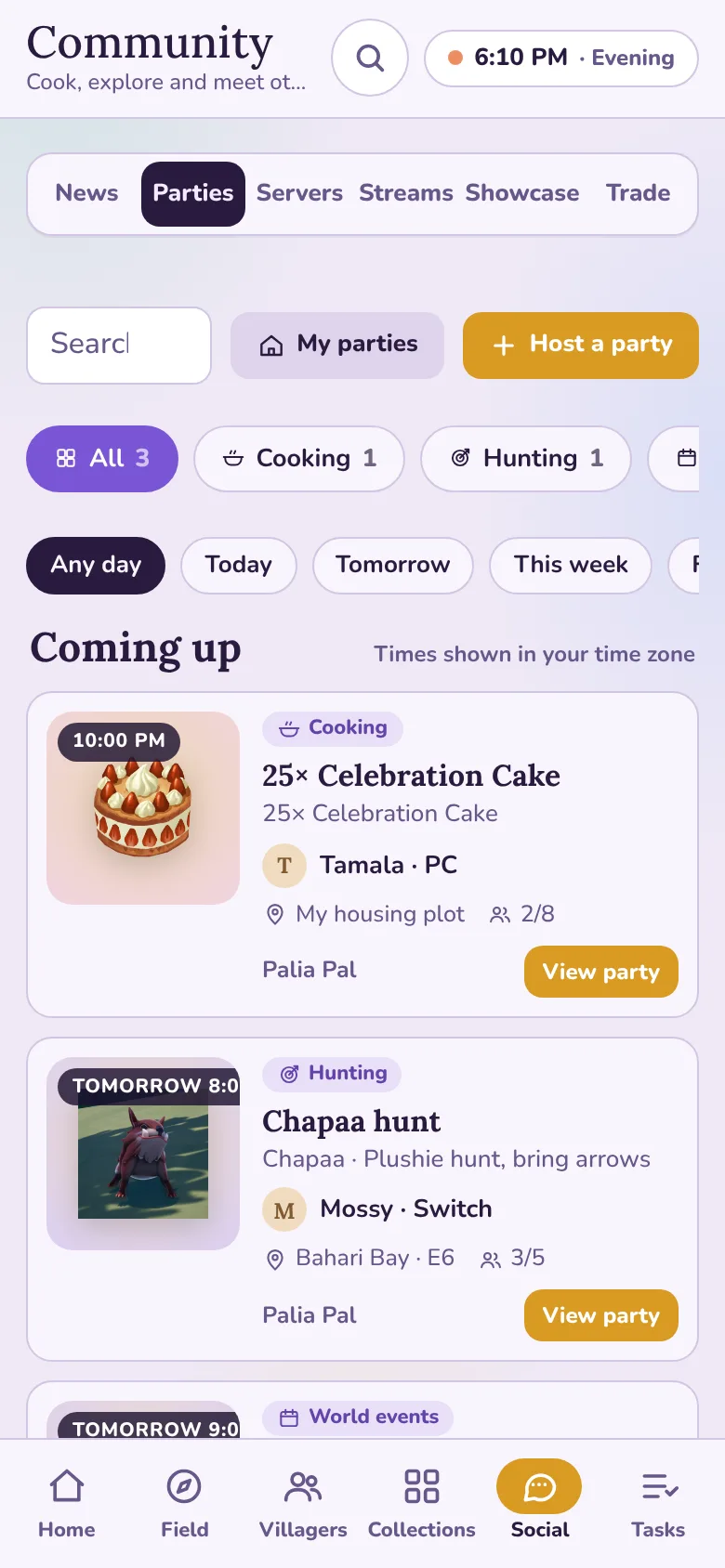
Social → Parties: Host a party, or My parties 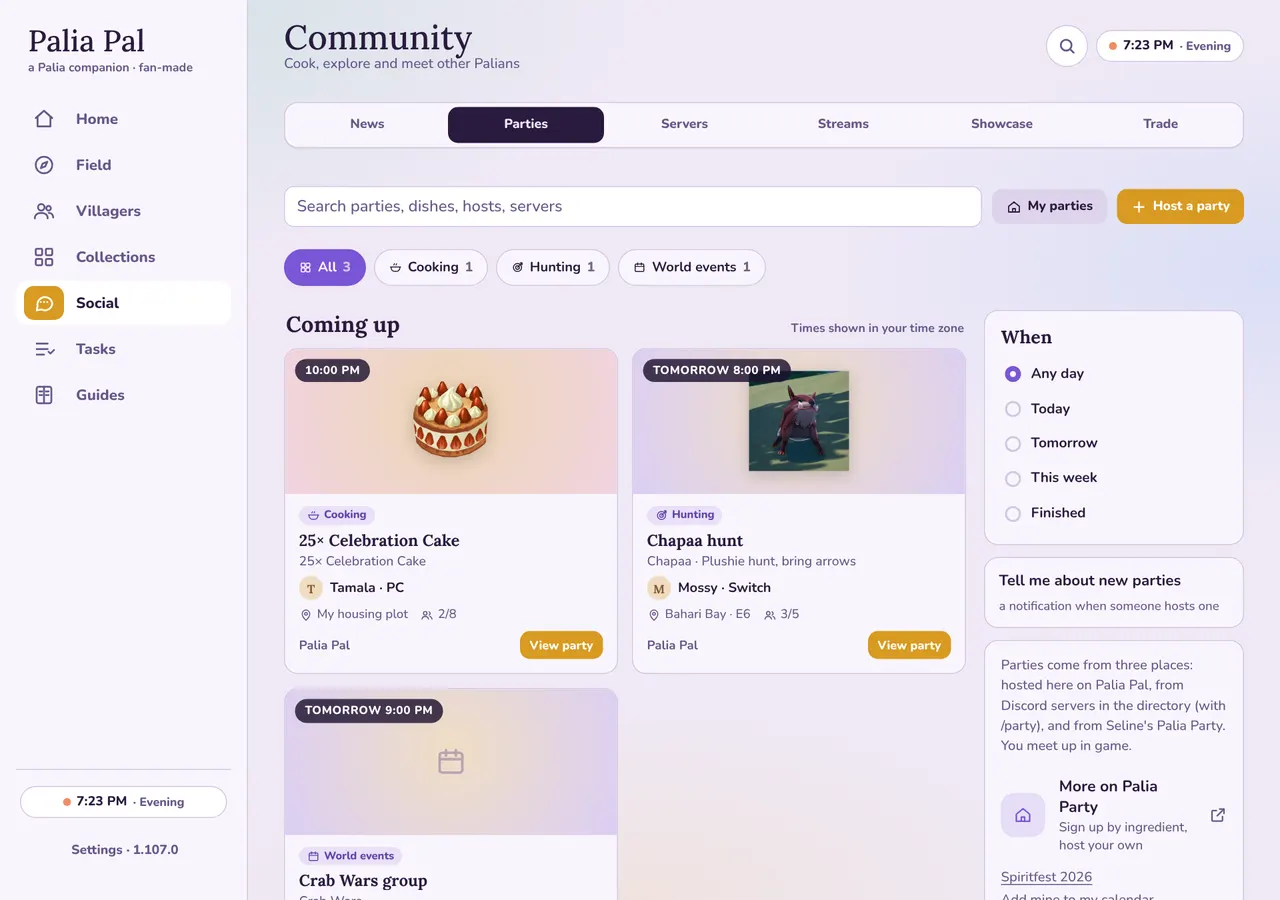
Social → Parties: Host a party, or My parties 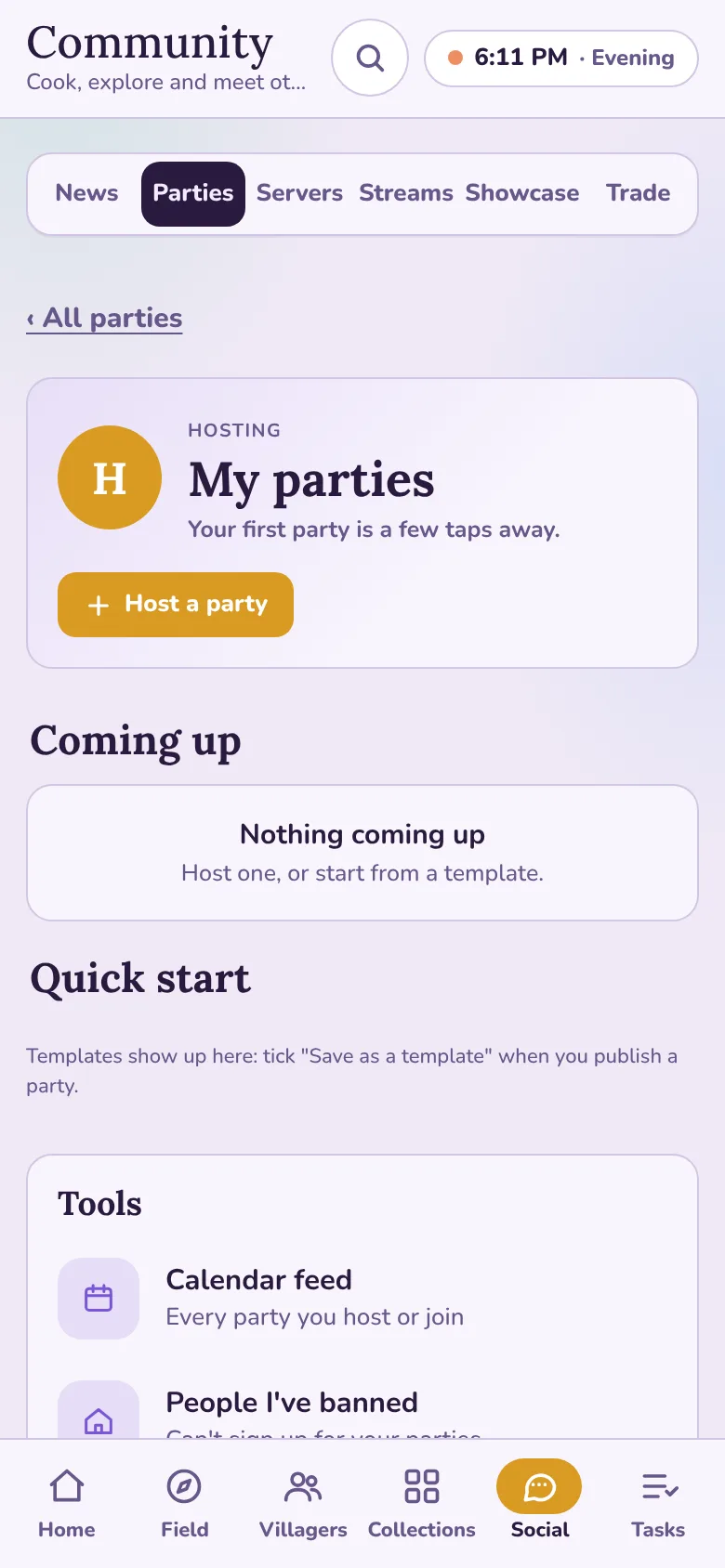
My parties: your hub, with templates and tools 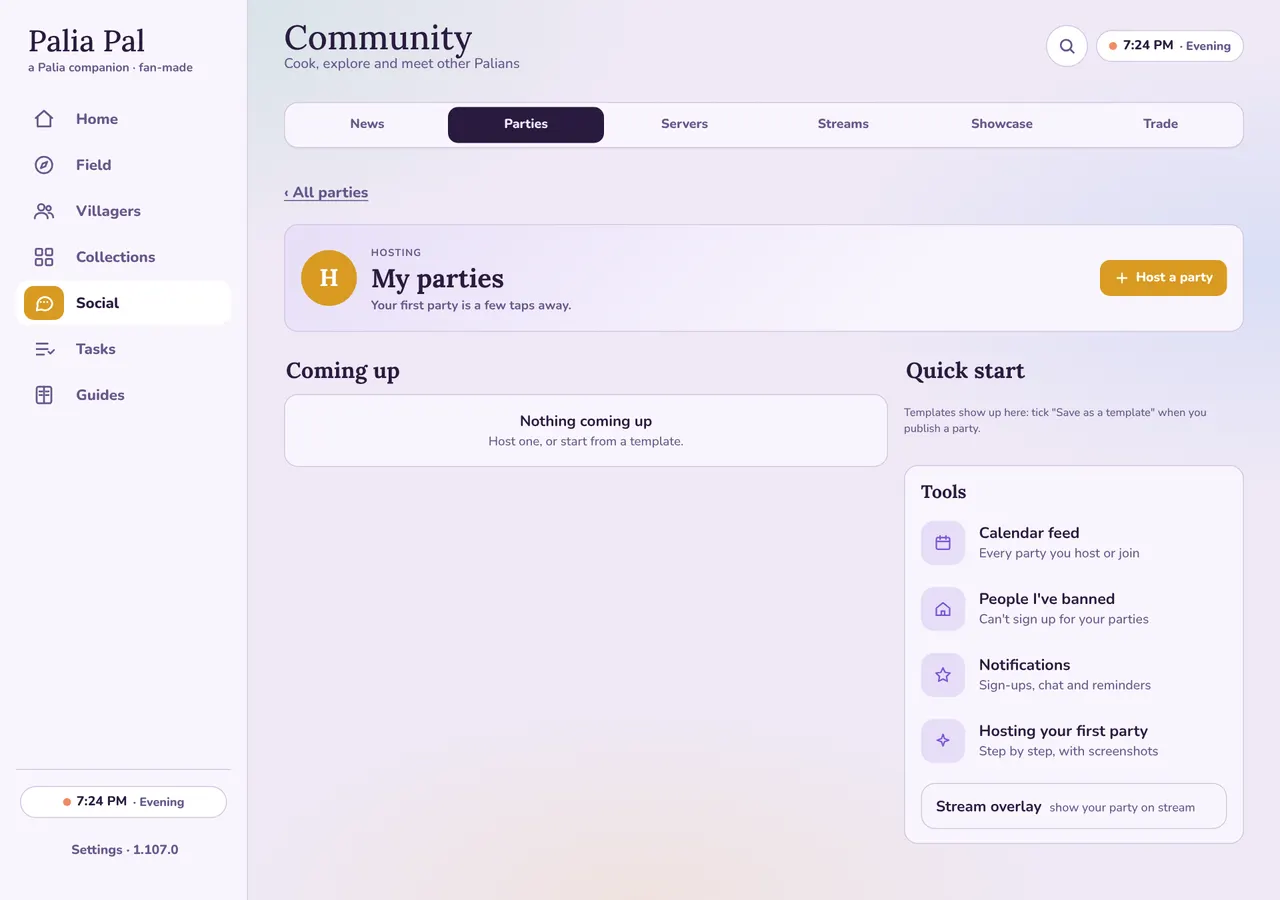
My parties: your hub, with templates and tools
The form: four short steps
1. What
Pick the kind. For cooking, pick the dish from the whole menu: scroll the grid or type a few letters. Then how many dishes: each ingredient's amount is multiplied by it. 50 is a popular batch.
Bug, fish and creature parties pick from our lists the same way; anything else gets a name.
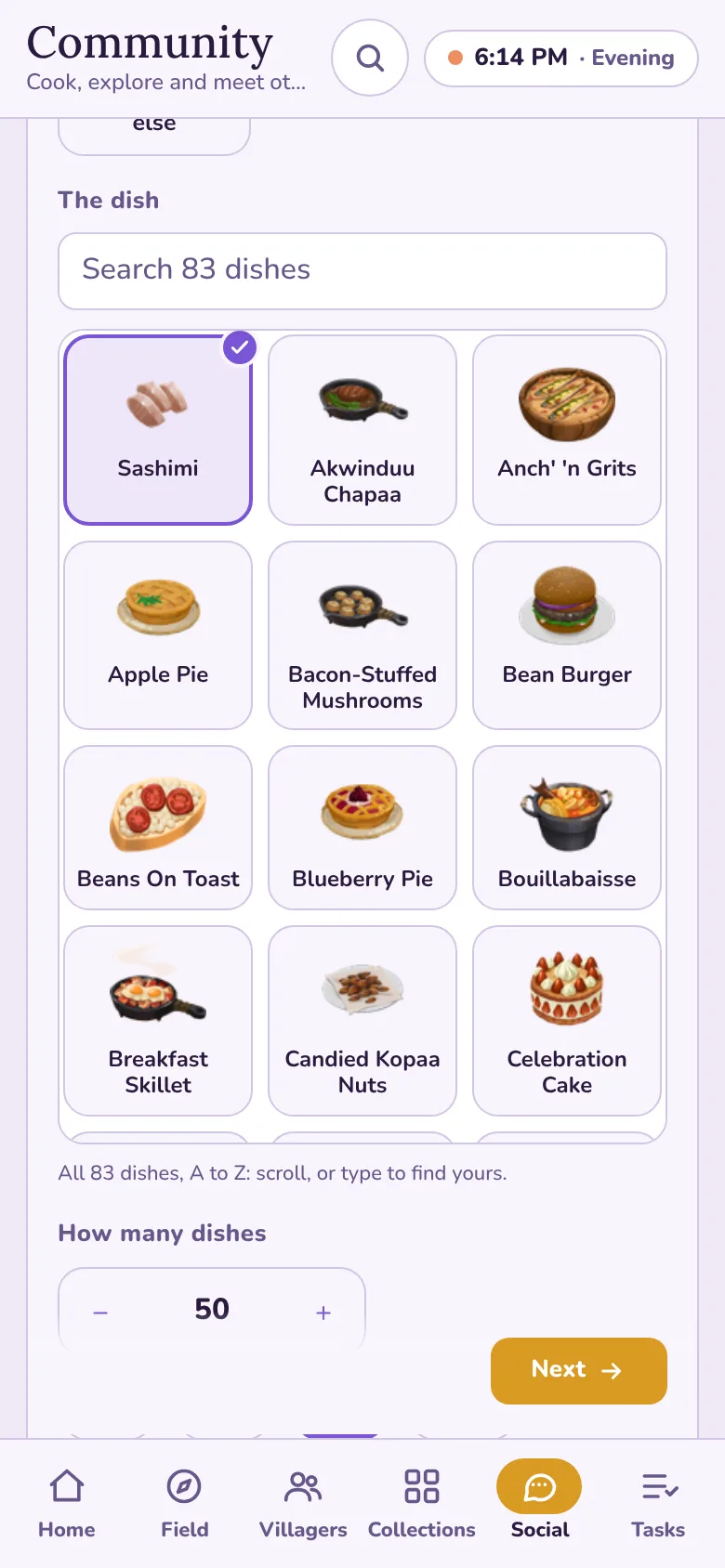
Step 1: the dish, from the whole menu, and how many 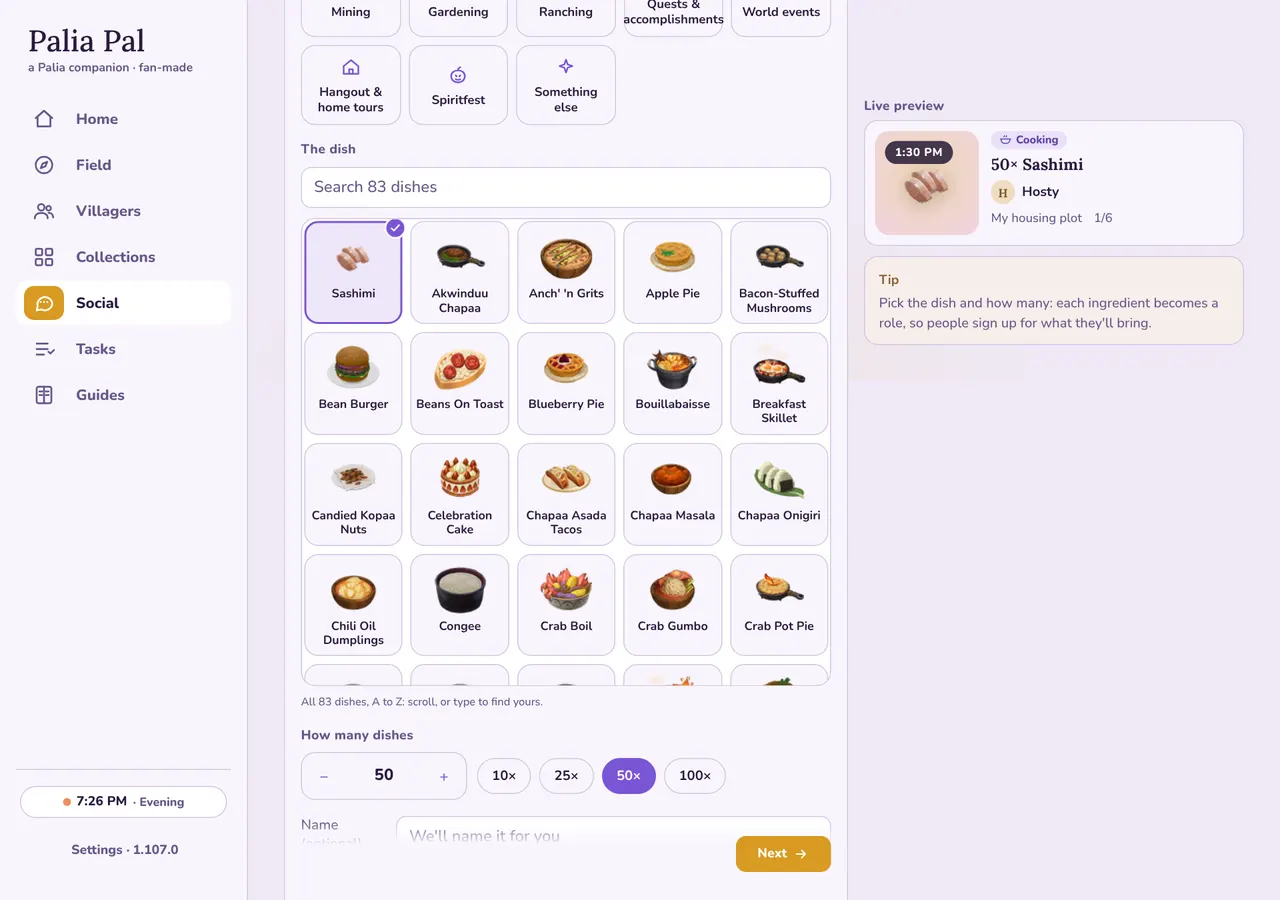
Step 1: the dish, from the whole menu, and how many 2. When & where
Tap a quick time (Tonight 8 PM, Tomorrow 8 PM, next Saturday) or pick one, in your time zone or another. Set how long it runs and ask people to arrive early: 10 minutes gives you time to get everyone into your world before the first stove lights.
Where: your housing plot for cooking; a region and map square for hunts.
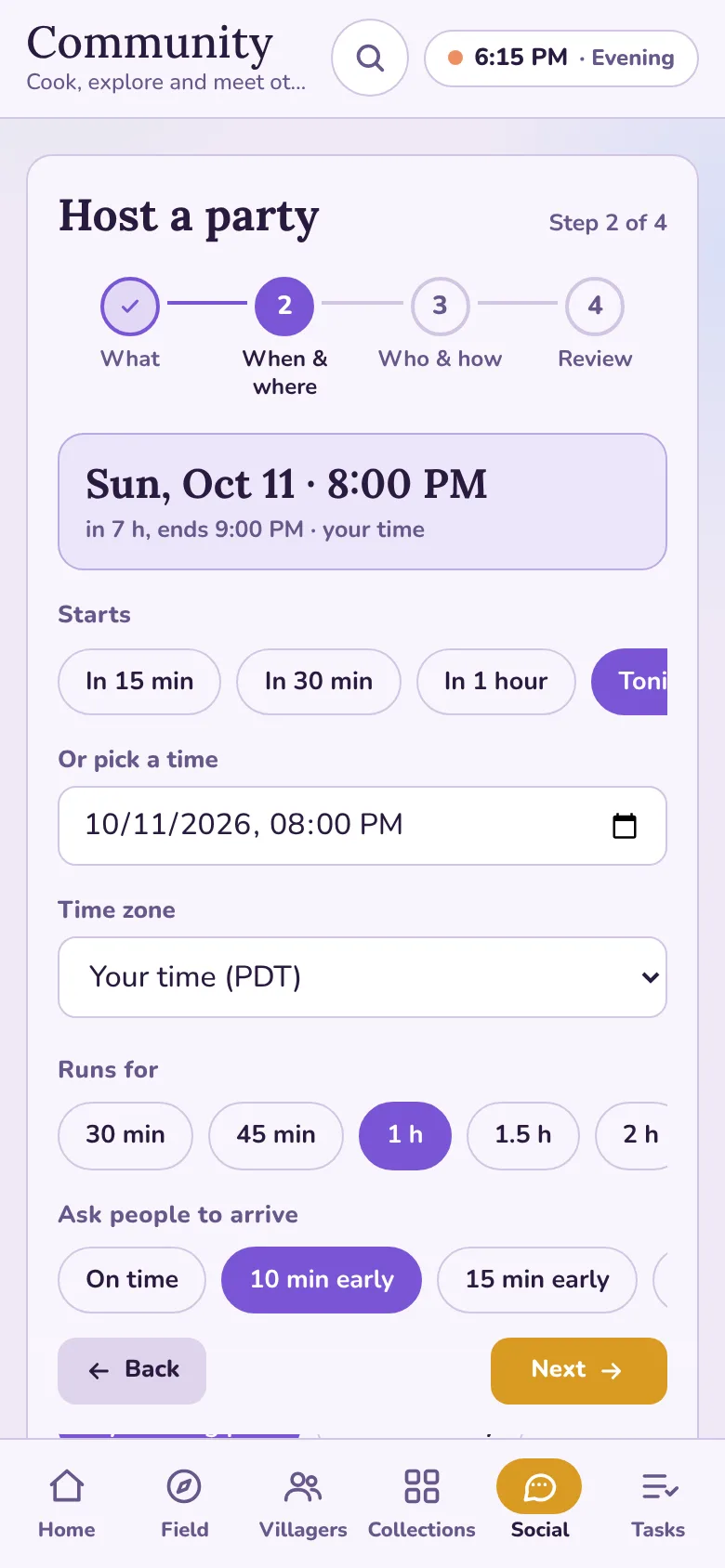
Step 2: when, how long, arrive early, and where 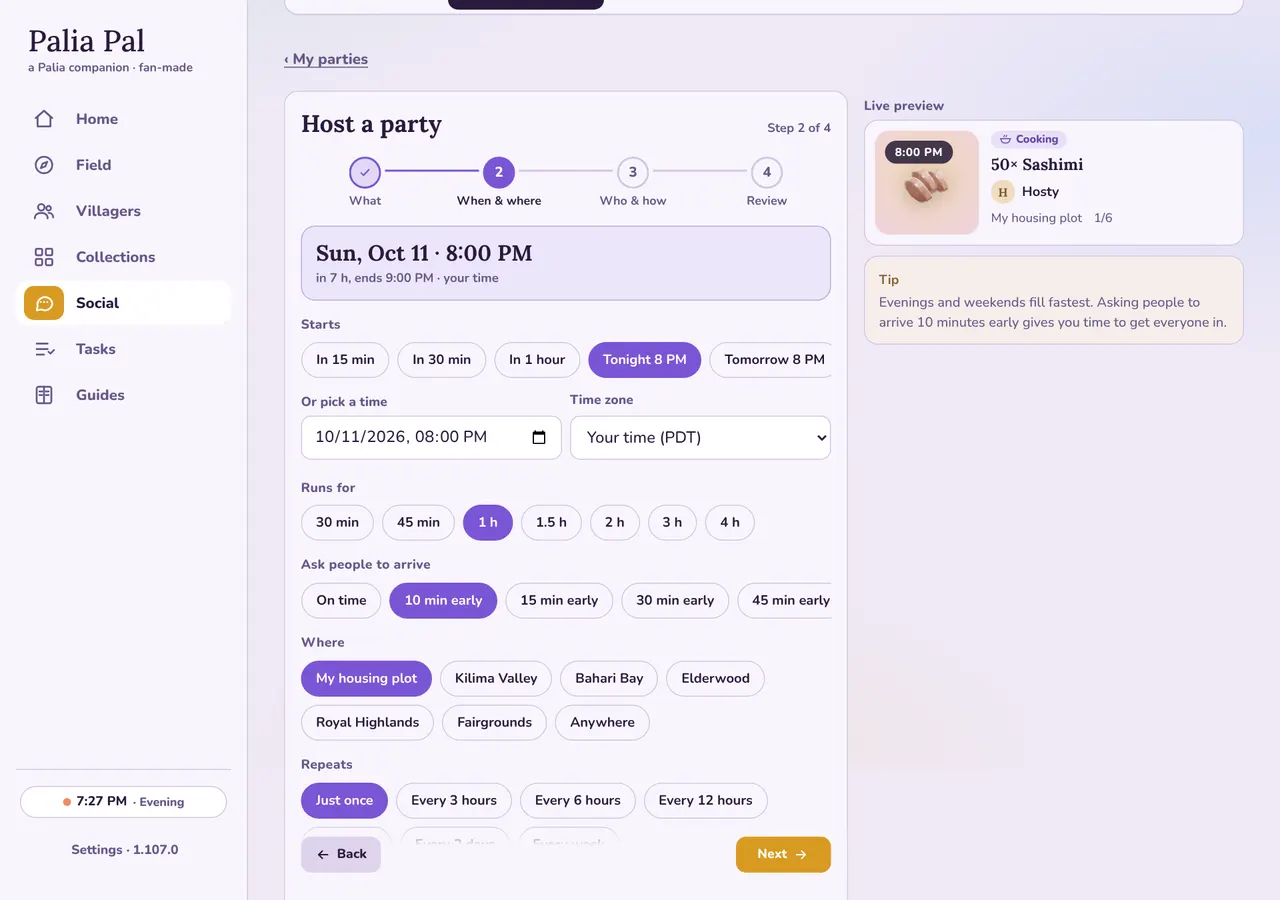
Step 2: when, how long, arrive early, and where 3. Who & how
People, you included. Then the roles: one per ingredient, with the amount for the whole batch already filled in; change any you'd rather people bring more or less of.
Kitchen to build is what one dish takes (two prep stations for Sashimi), so you know what to place on your plot. Pick your station: guests see where you'll be.
How people get in: World ID is the easiest for a first party (add it now or later, only people signed up see it). Tick New players welcome so beginners feel invited.
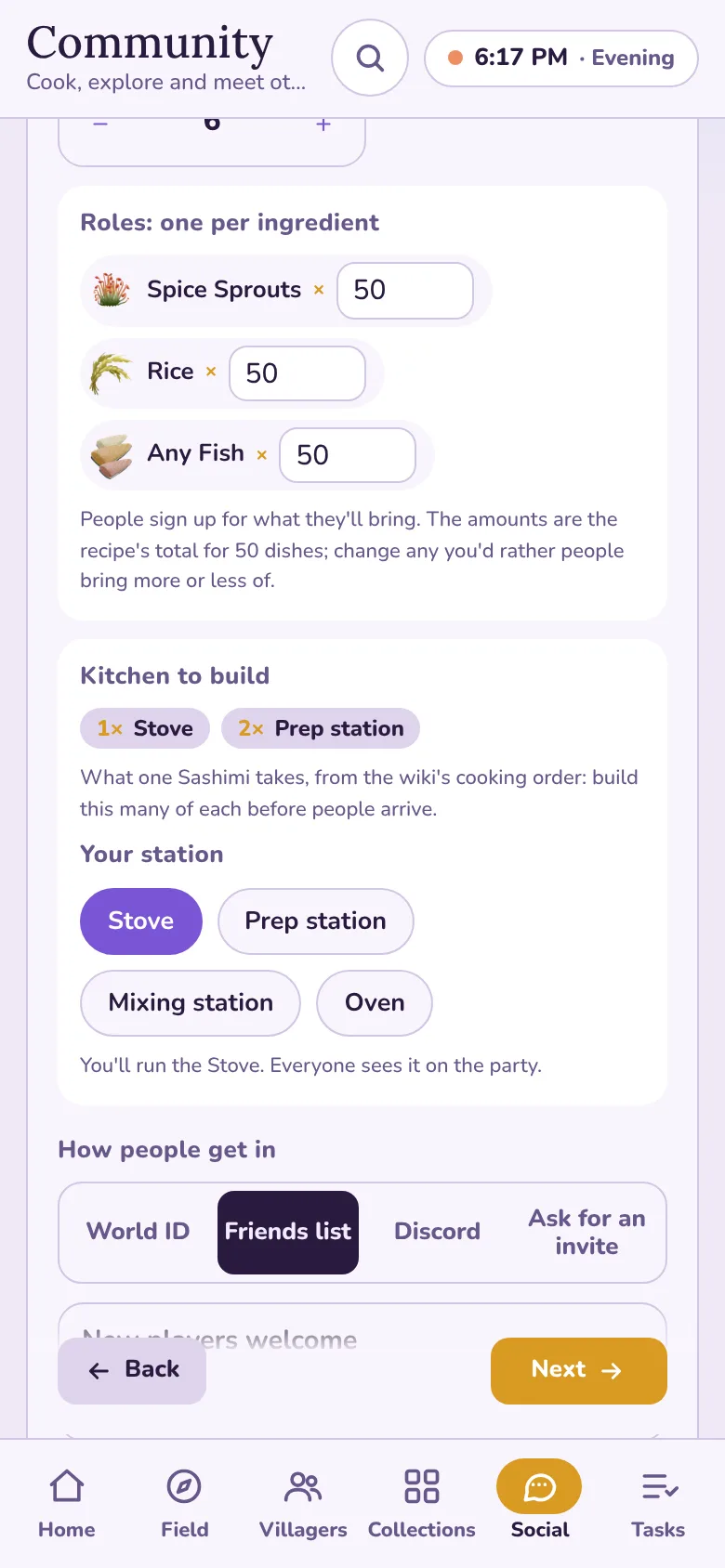
Step 3: roles, the kitchen to build, your station 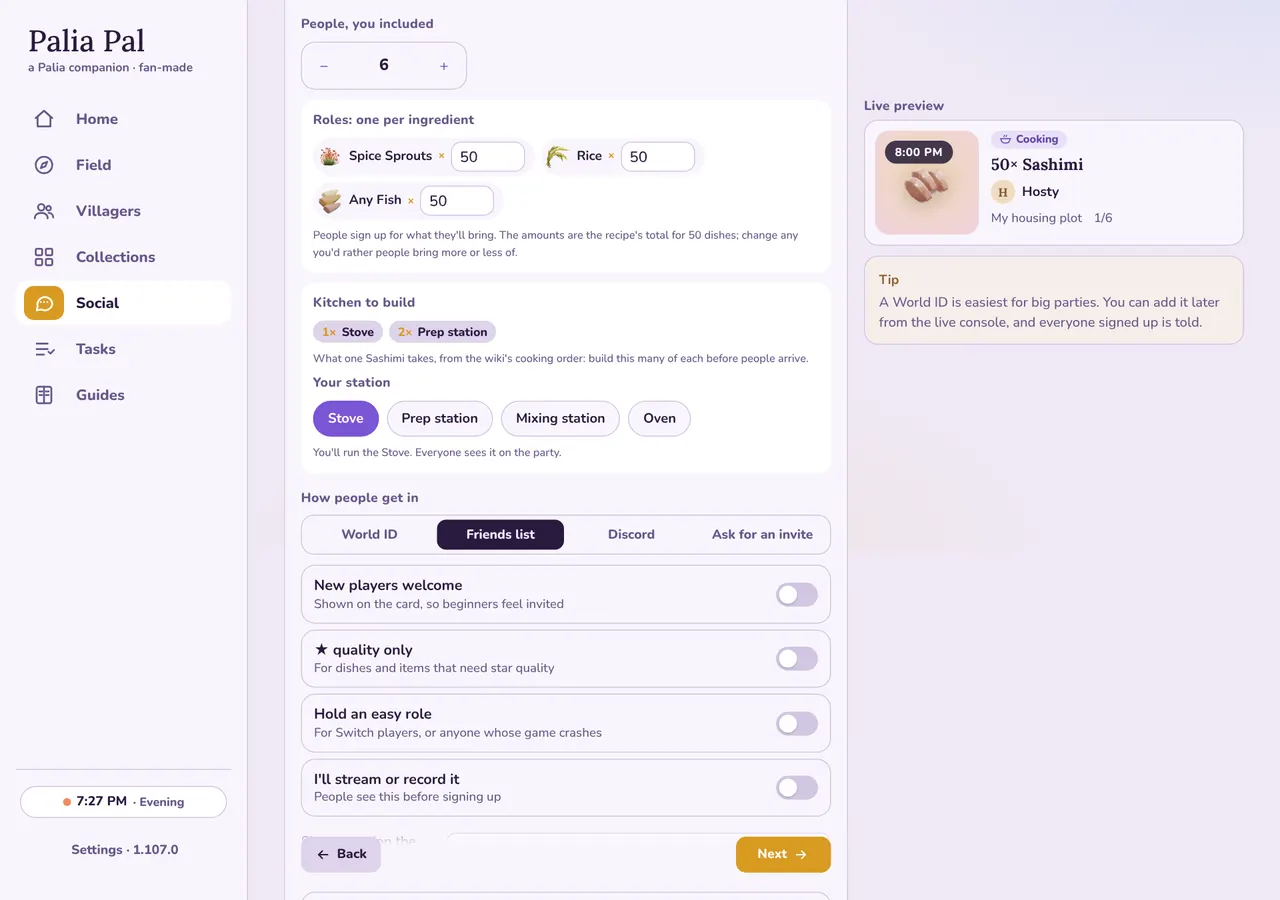
Step 3: roles, the kitchen to build, your station 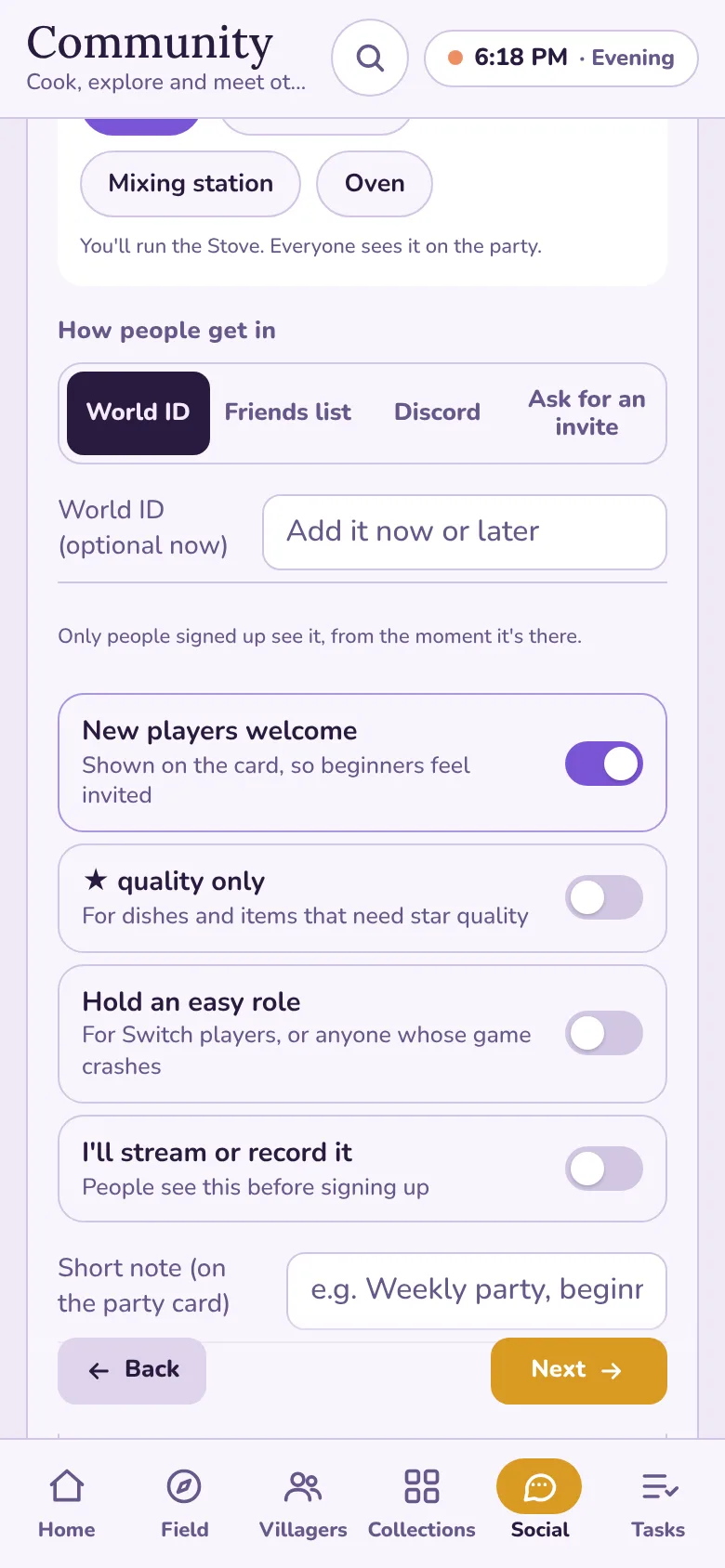
Step 3: how people get in, and the switches 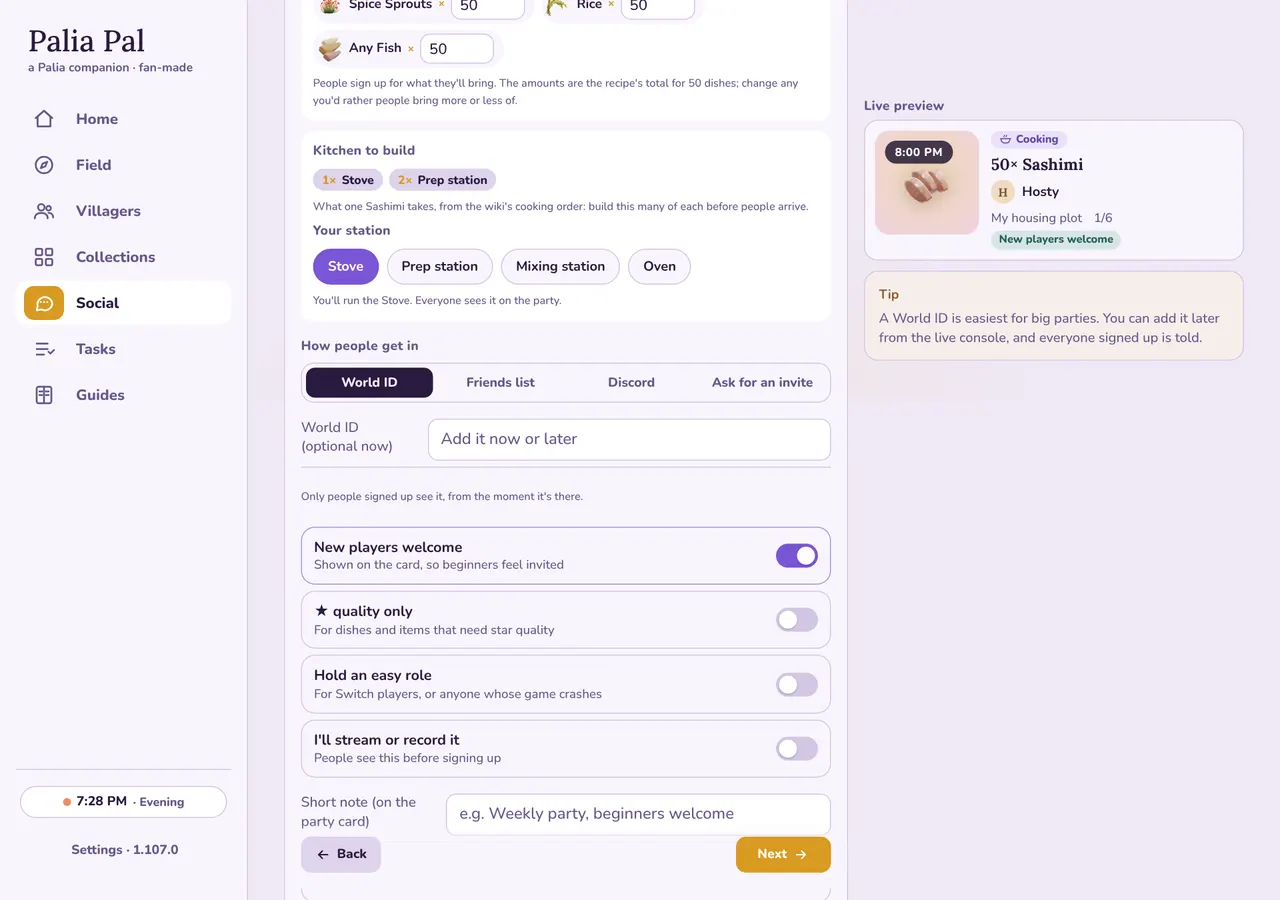
Step 3: how people get in, and the switches 4. Review
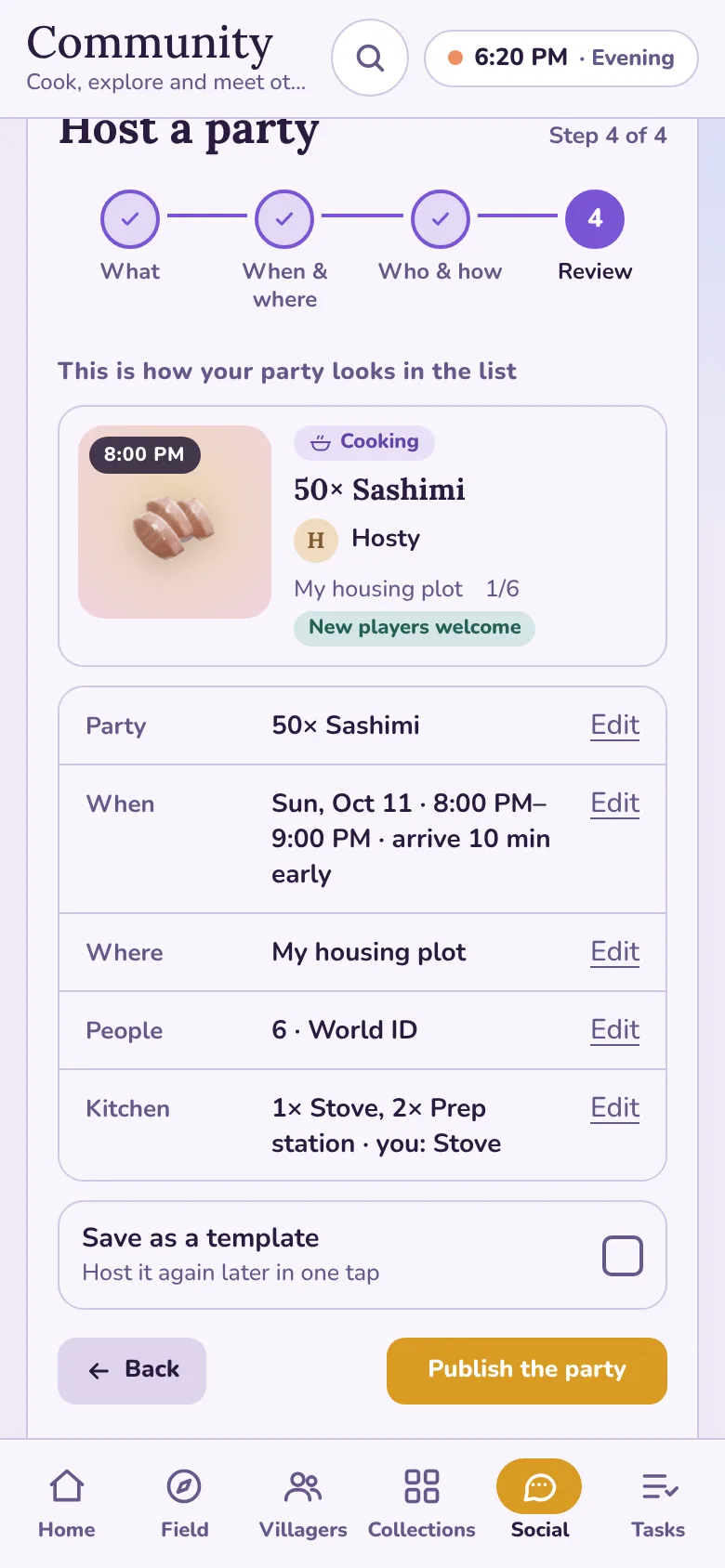
The card as guests will see it, and a summary with Edit on each line. Tick Save as a template if you'll host this again: next time it's one tap. Then Publish the party.
Step 4: review and publish 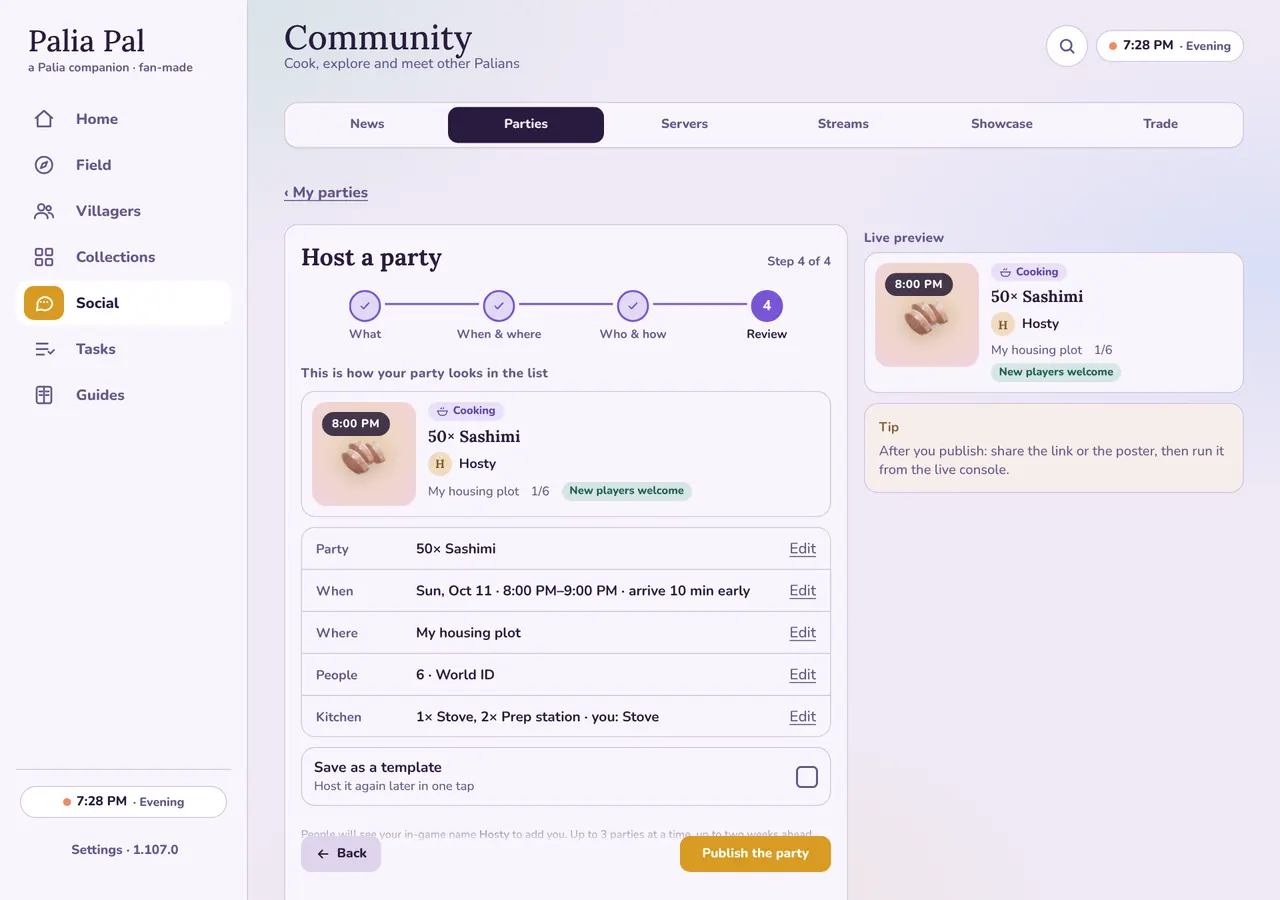
Step 4: review and publish
It's up: share it
Share your party
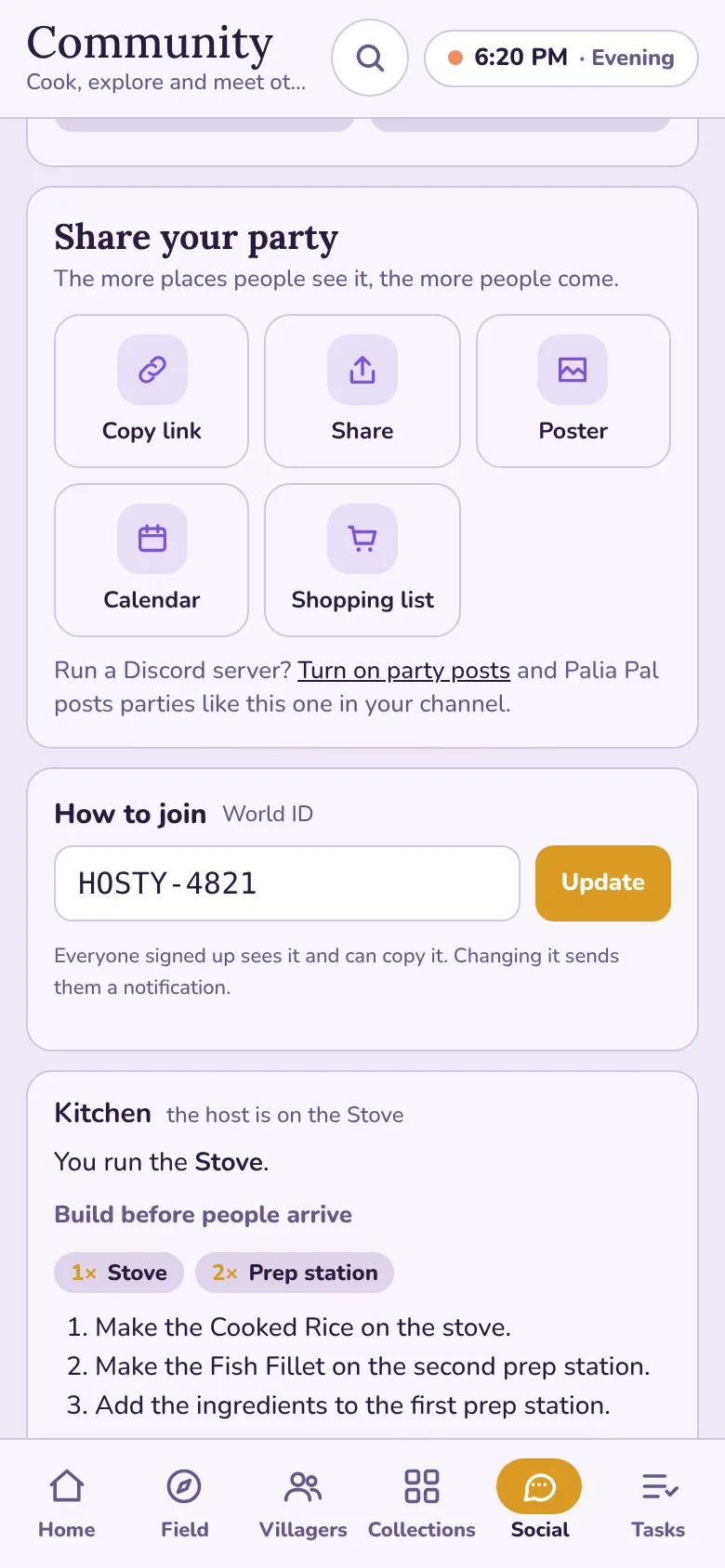
Right after publishing, your party page opens with the sharing kit: Copy link, Share, a Poster drawn for you (for Facebook groups and Discord), the Calendar file and the Shopping list for every ingredient. Most sign-ups come from a link posted where people already talk about Palia.
Under it, How to join is where you share or change the World ID, and the Kitchen card lists what to build before people arrive.
The sharing kit, the World ID and the kitchen to build 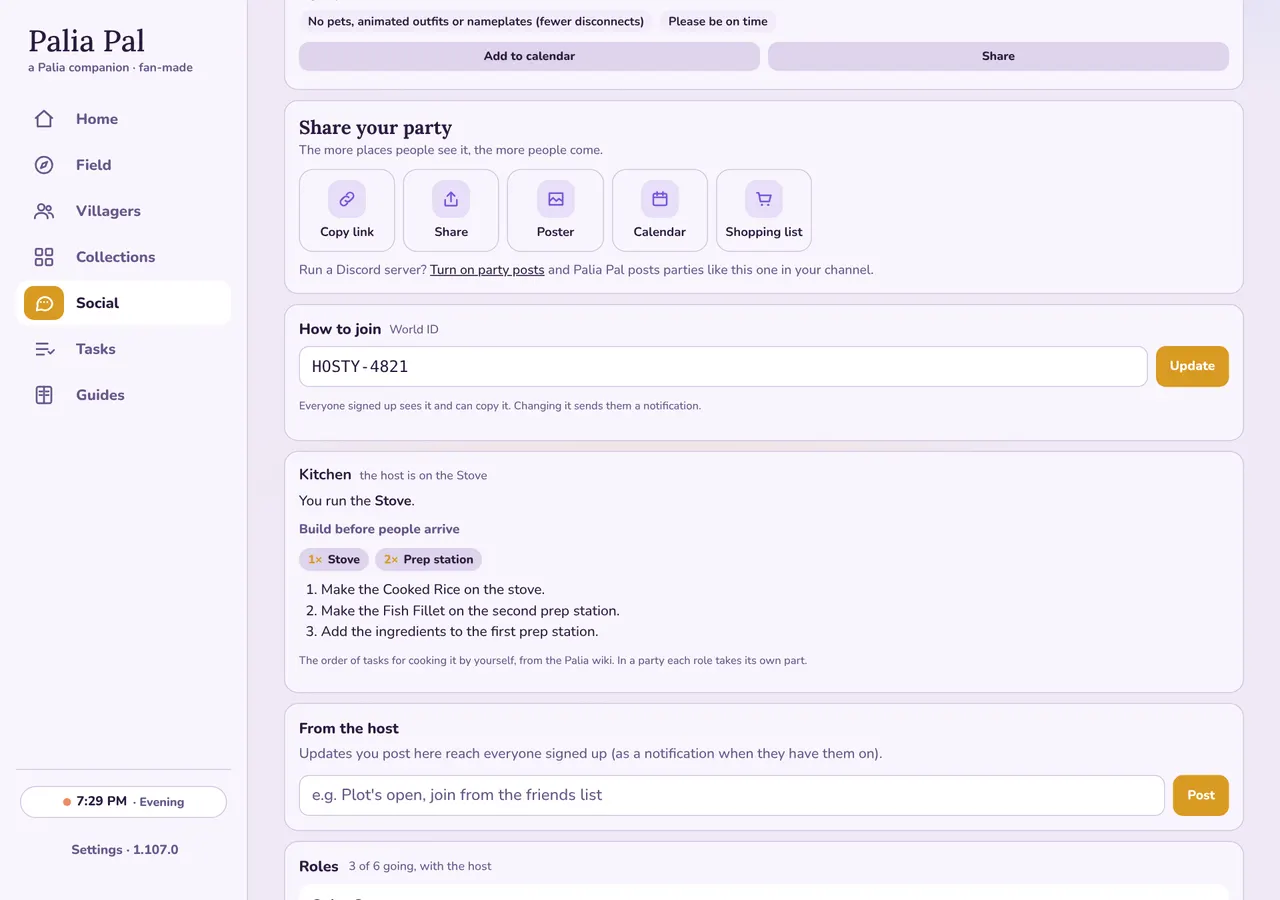
The sharing kit, the World ID and the kitchen to build
Run it from the live console
The live console
From your party page, Live console. It has the countdown, the World ID, one-tap announcements ("World ID is up, come on in!", "Starting in 5 minutes"), and Still missing: roles nobody has taken yet.
Who's coming lists everyone by role with what they bring. Tap Here as people arrive (it counts on everyone's party record), make someone a co-host to share the work, and Take off anyone who shouldn't be there.
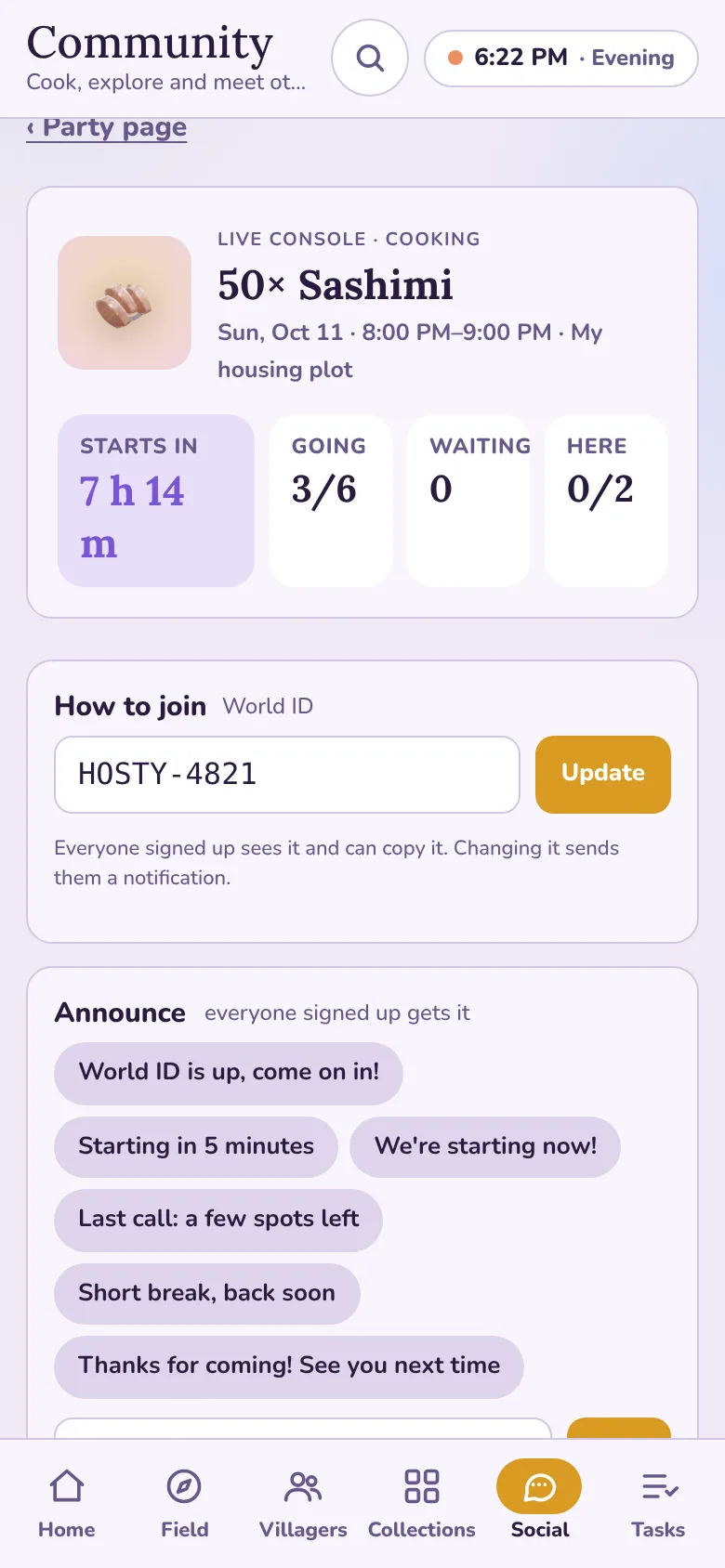
The console: announce, and what's still missing 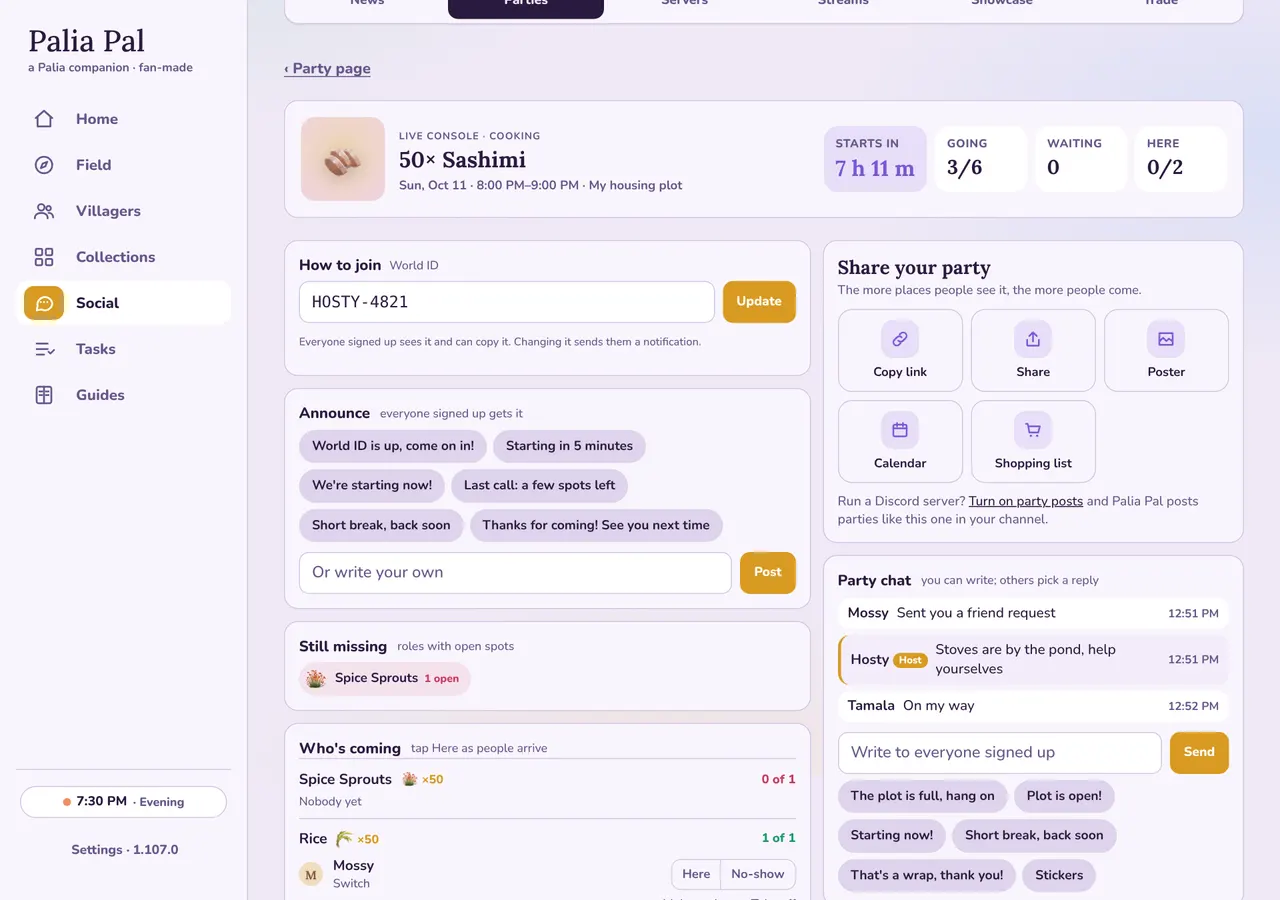
The console: announce, and what's still missing 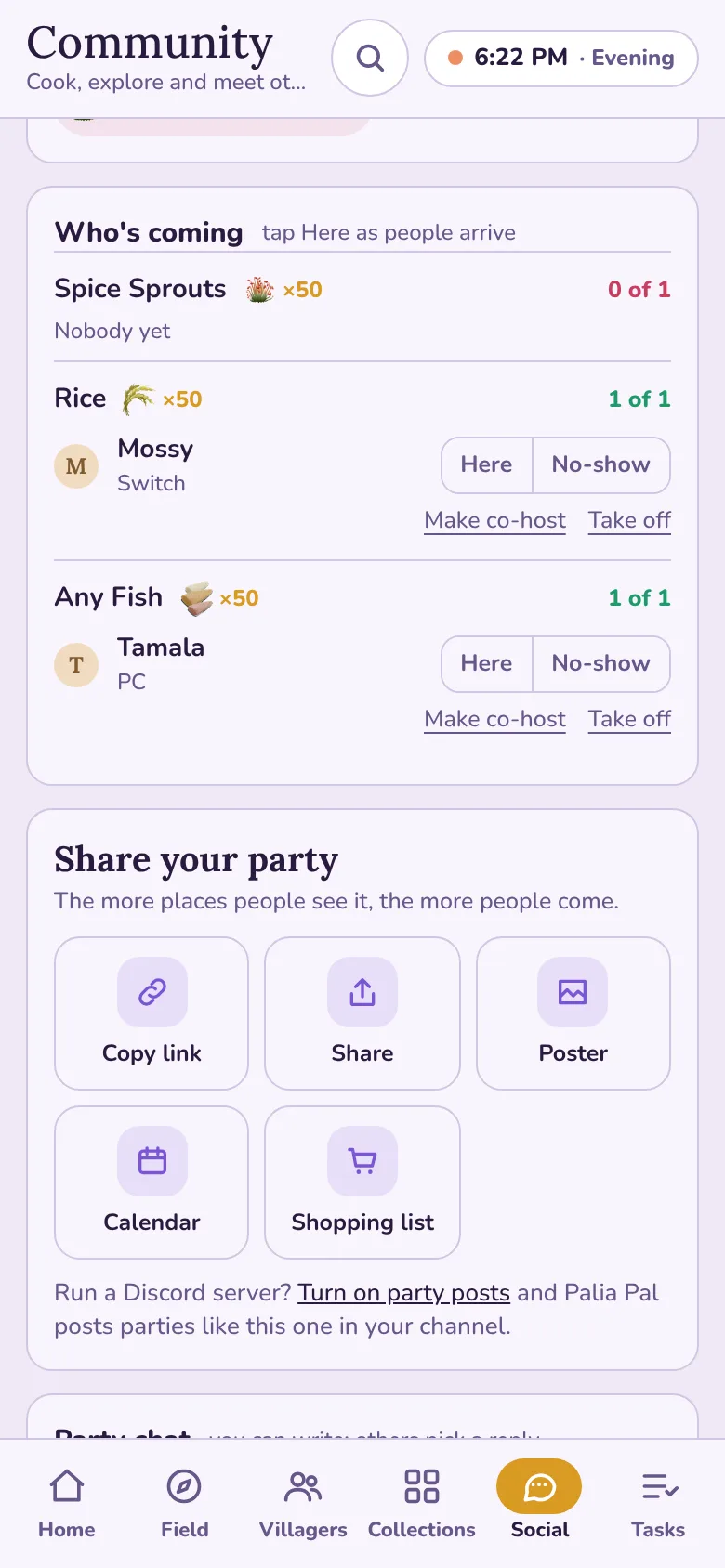
Who's coming, with Here / No-show 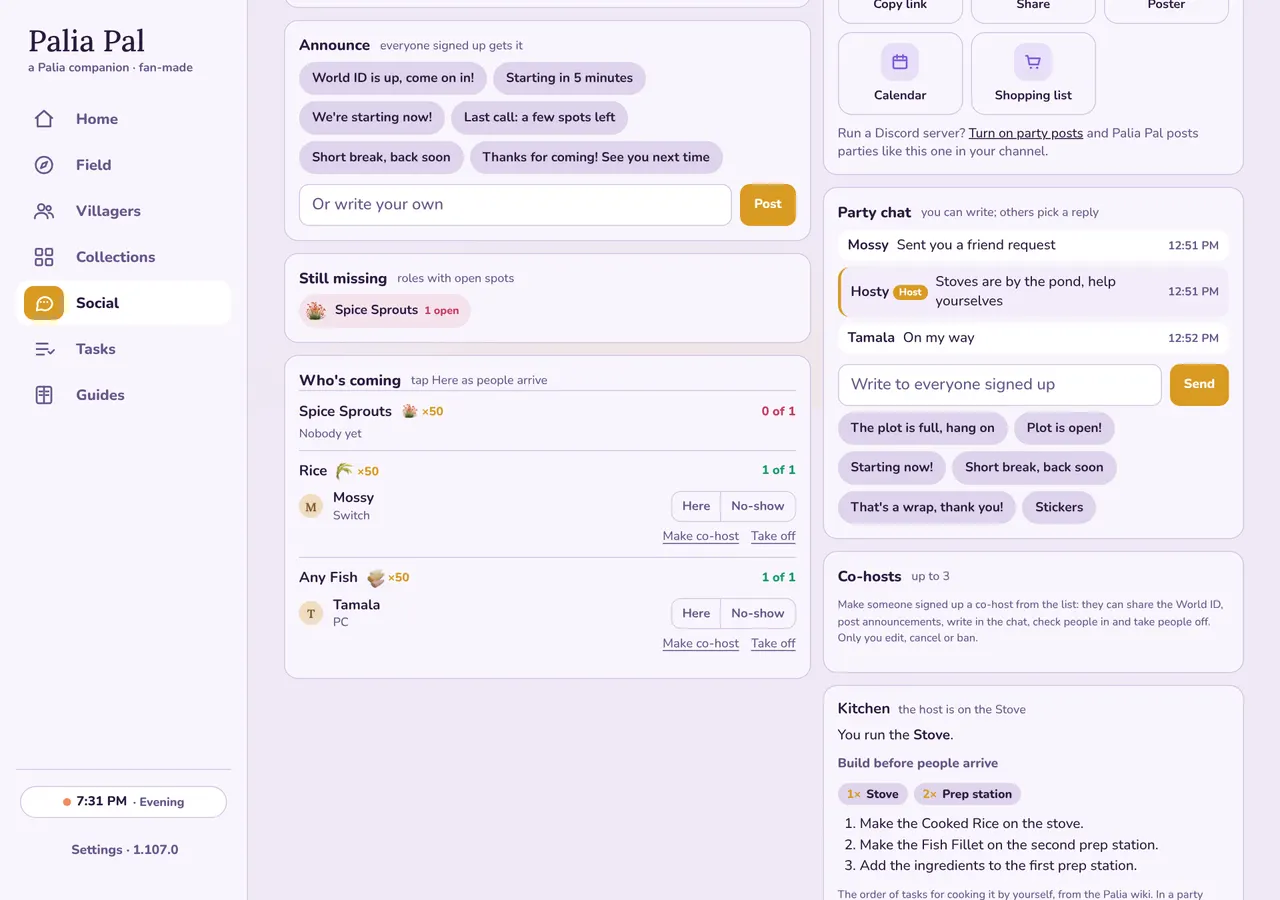
Who's coming, with Here / No-show
What your guests see
Their role, and what to bring
Someone who takes a role is told at once what to bring, and their party page keeps a You're in as… card with the ingredient, the amount and one tap to their shopping list. They see the World ID as soon as you share it, your station, the kitchen, and quick replies for the chat ("Sent you a friend request", "I'm in your world").
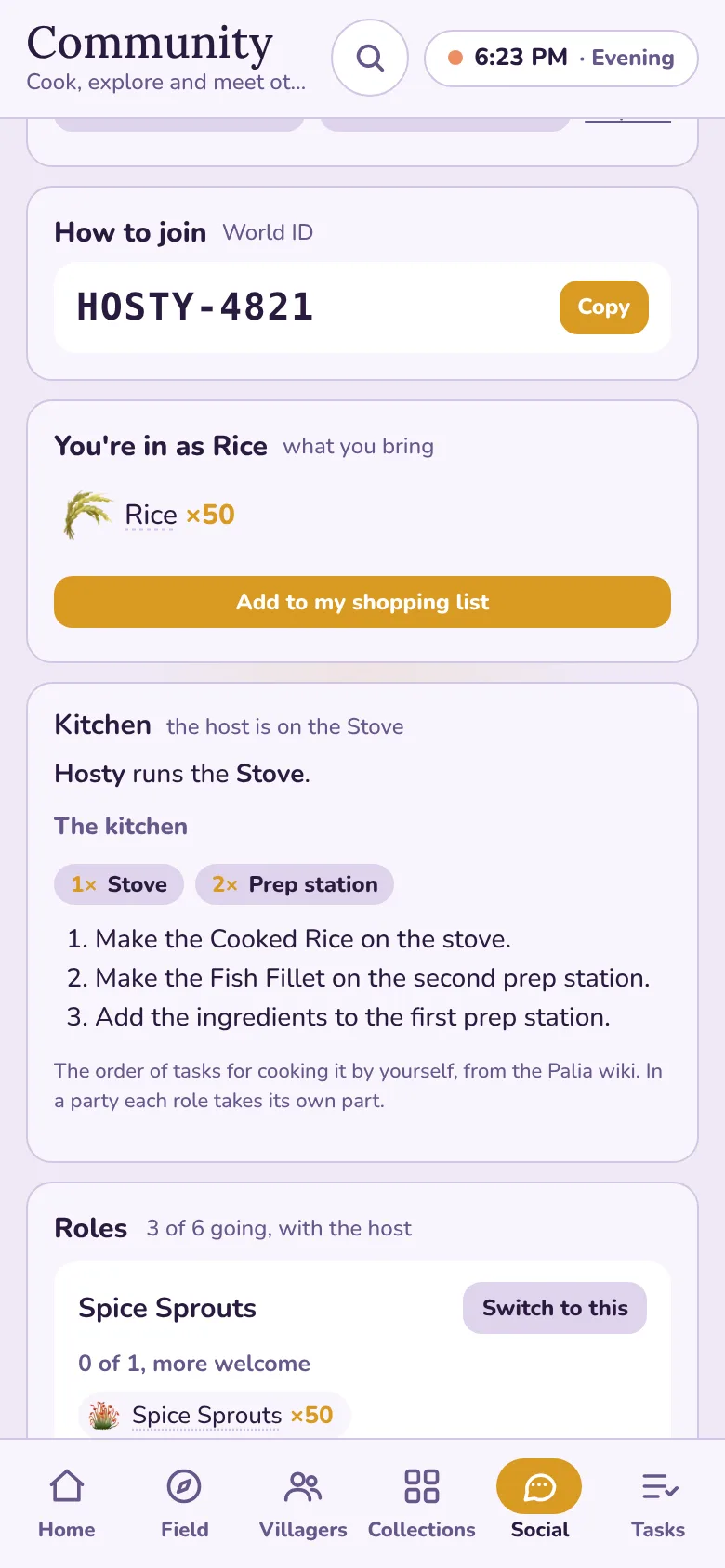
A guest: the World ID, what to bring, the kitchen 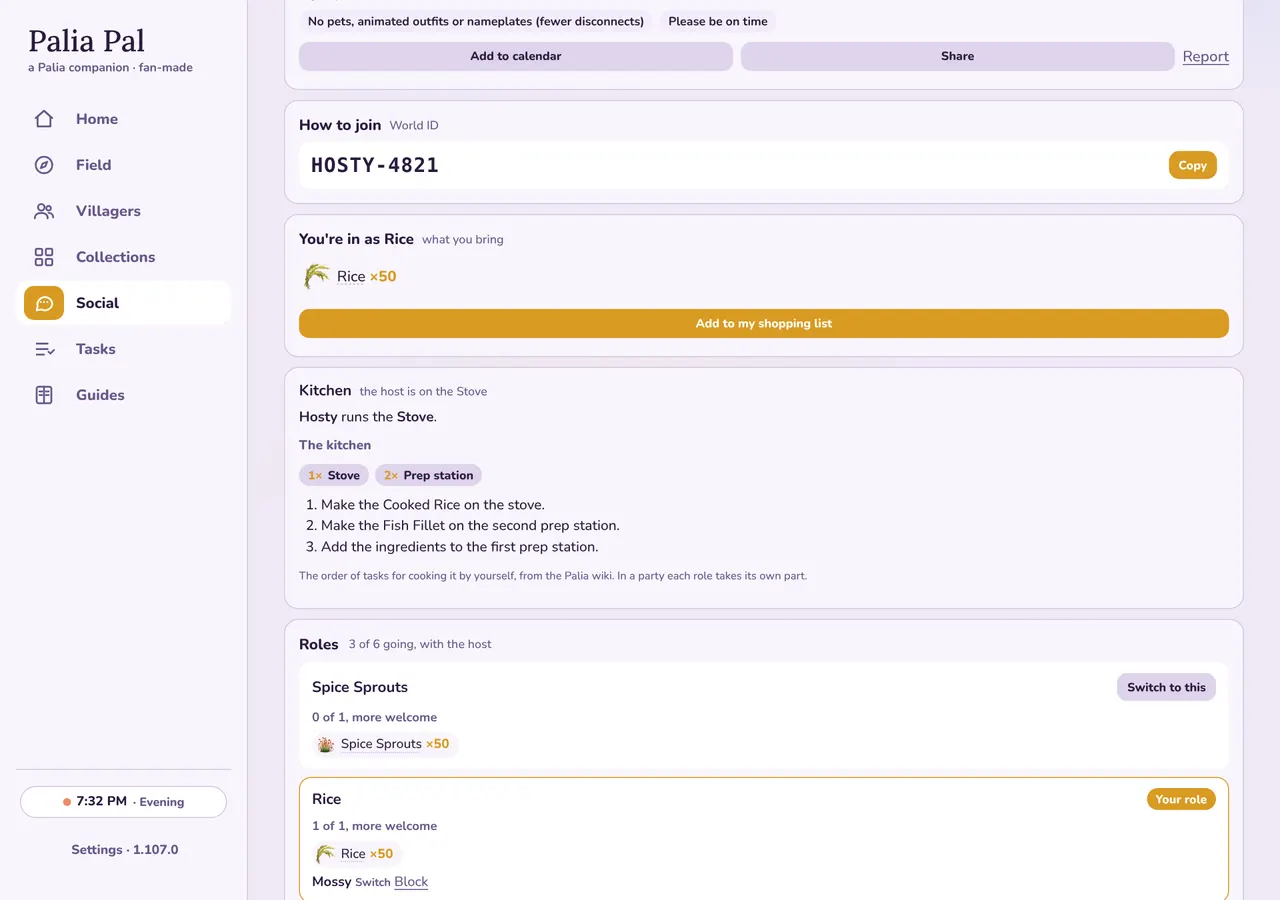
A guest: the World ID, what to bring, the kitchen
After the party
- Wrap up in the console: Same time next week hosts it again, Save as a template keeps the setup.
- Guests can send a thank-you; it counts on your host page, along with the parties you've hosted.
- Everything else, from repeating parties to bans and the stream overlay, is in the hosting guide.
Questions
How many people should my first party be?
Six, you included, is a comfortable first party: a cooking party for a three-ingredient dish fills three roles and leaves room for extras. You can go up to 40 later.
What if nobody signs up?
Share the link in a Discord server or a Facebook group: that's where most sign-ups come from. People who follow the kind of party you host get a notification the moment you publish, and your party stays in the Social list until it starts. A party with one guest still cooks faster than cooking alone.
Can I change things after publishing?
Yes. Edit the party from its page (people signed up keep their roles), add or change the World ID any time from the live console, and post announcements. Cancelling tells everyone signed up.
Do I need a Discord server?
No. Everything works in the app. If you have one, Palia Pal can post your parties there and people can sign up from the card.
When do I share the World ID?
Whenever you like: at publish, or from the live console a few minutes before the start. Only people signed up ever see it, and they get a notification when it appears.
Do I have to cook the whole batch myself?
No, that's the point. Everyone who helps gets the finished dish. The kitchen card shows the order of tasks for one dish; in a party each role takes a part.